Extract Data from Websites
Scrape, structure, and export data from any public webpage directly from your browser without writing a single line of code.
Starter prompt
Extract all the job listings on this page as a table with: job title, department, location, and link. Export as CSV.
Introduction
Dume for Chrome can turn any structured webpage into exportable, clean data. Whether it's a directory of contacts, a product catalog, a pricing comparison page, or a job board — describe what you want and Dume extracts it.
How to Extract Data
Step 1 — Open the target page
Navigate to the page containing the data you want to extract. This works best on pages with repeating structures: tables, card grids, lists, or directories.
Step 2 — Open the Dume sidebar
Click the Dume icon in your browser toolbar to open the sidebar on the current page.
Step 3 — Describe the extraction
Use plain language to describe what you need:
Extract all rows from this table. Columns should be: Company Name, Industry, Employee Count, HQ Location.From this product page, extract: product name, price, SKU, and availability status for every item listed.Get all the speaker names, job titles, and company names from this conference page.Step 4 — Export
Once Dume extracts the data, you can:
- Copy as Markdown table
- Export as CSV
- Save to Notion database
- Send to a Google Sheet
What Works Well
| Page Type | What to Extract |
|---|---|
| Job boards | Title, company, location, salary, link |
| Pricing pages | Plan name, price, features, CTA |
| Product directories | Name, category, price, rating |
| Conference pages | Speakers, topics, schedule |
| Company directories | Name, size, industry, location |
Limitations
Dume for Chrome works with publicly accessible page content. It cannot:
- Access content behind a login it doesn't have credentials for
- Extract content that requires JavaScript interaction (infinite scroll, heavy SPAs) without additional prompting
- Bypass paywalls or access restricted content
For heavy scraping needs, consider using Dume Cowork on the desktop for more powerful automation.
Responsible Use
Only extract data from pages where it is publicly available and your use complies with the site's terms of service. Dume does not store the extracted data — it stays in your session and exports to your chosen destination.
More Dume for Chrome use cases
Other workflows you can automate with Dume for Chrome.

Compare Options Across Websites
Extract and normalize data from multiple pages to generate structured comparisons and make better decisions faster.

Fill Forms Automatically
Stop re-typing the same information. Dume for Chrome fills web forms using your saved profile data or dynamic context in seconds.
Organize Files Across Drive
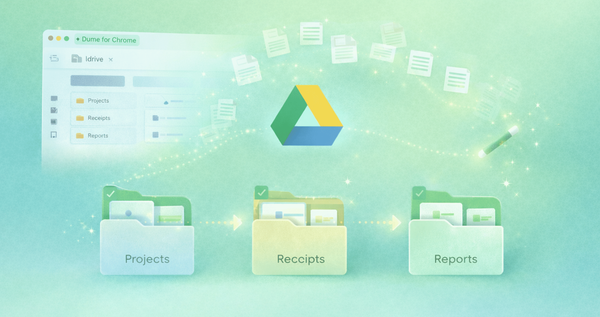
Sort, rename, and structure files across Google Drive based on content and context — without manual effort.